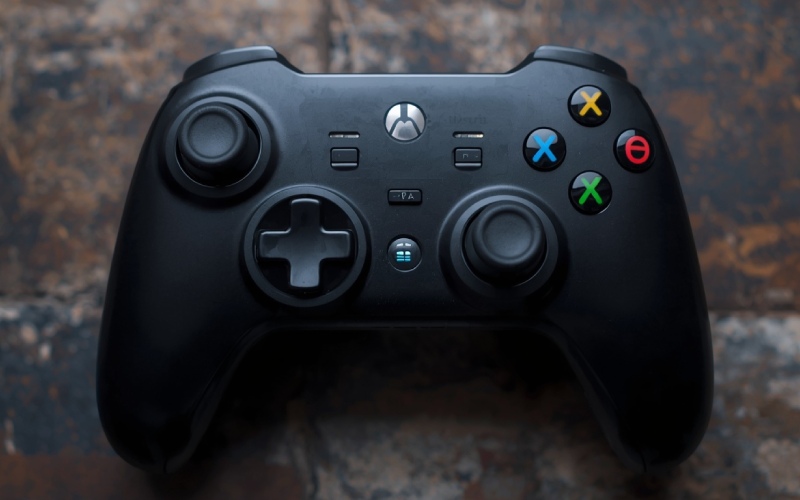
HSSGamepad Connectivity Issues: A Complete Guide to Fixing Connection Problems
Are you a hardcore gamer? Then you must relate to the frustration of starting a game and finding your controller is not connecting, disturbing your gameplay, and causing delays. HSSGamepad connectivity issues are normal and can occur due to several reasons, including low battery, wireless interference, incorrect connection modes, and pairing problems,
or outdated drivers, but the good news is that most connection problems can be easily diagnosed without complicated technical knowledge. In this article, we will have a detailed discussion on this topic, so keep reading.
Common HSSGamepad Connectivity Problems
HSSGamepad connection problems can be categorized into:
-
The controller doesn't appear in the Bluetooth list.
-
It connects but doesn't respond to button presses.
-
The connection drops during gameplay.
-
Input feels delayed or inconsistent.
-
Windows doesn't recognize the controller through USB.
-
A wireless dongle is connected, but the controller doesn't work.
Check the Battery First
The most common pairing issue is low battery. We often overlook low battery indications and only give attention when things stop working. You should first fully charge your HSSGamepad and then try to connect it again to resolve this issue.
Fix Bluetooth Pairing Problems
If the HSSGamepad is not showing as available for connecting on your phone, computer, or other device, make sure to check whether it is actually in pairing mode or not. Generally, pairing mode on the HSSGamepad is reflected by a rapidly flashing LED. However, the button combination for activating this pairing mode can be model-specific, and you should check the user manual to find out its procedure.
You can follow this practical approach:
-
Turn off Bluetooth on previously connected devices.
-
Remove or "forget" HSSGamepad from your current device.
-
Turn Bluetooth off and back on.
-
Put the controller into pairing mode again.
-
Pair it as a new device.
When the Controller Connects but Doesn't Work
Sometimes the device gets successfully connected to the controller, but it doesn’t respond to its buttons. The possible reason behind this can be the selection of the wrong input mode. You should check whether you selected your HSSGamepad as the input mode or not. If not, then select it and try again; it should start working.
Stop Random Disconnections
If you are experiencing random disconnections, you should remove all interference between your device and HSSGamepad. Many wireless controllers like HSSGamepad operate around the 2.4GHz spectrum, which can become difficult to connect to when the device is crowded with multiple wireless devices. First, remove all interference and then try again; it should start working.
HSSGamepad USB Connection Problems
A wired connection is considered one of the strongest connections, but sometimes issues can occur. Here are some methods to resolve this issue:
-
A different USB port.
-
Another compatible data cable.
-
Restarting the computer.
-
Checking Device Manager for driver problems.
Problems With a 2.4GHz Wireless Dongle
If your HSSGamepad operates on a USB wireless receiver, first make sure to properly connect your dongle and then check whether the appropriate wireless mode is selected. If the issue is not resolved, try another USB port to find out the root cause of the problem.
When Is the Controller Probably Faulty?
After applying all these methods and your HSSGamepad’s issue is still not resolved, test it on another compatible device. If it starts working normally on your computer but repeatedly fails on your phone, then the problem is likely to involve the primary device’s Bluetooth, drivers, USB ports, or compatibility. However, if another device fails to connect or you experience the same issue, your HSSGamepad is likely faulty and should be repaired.
Frequently Asked Questions (FAQs)
Why Won't My HSSGamepad Connect Through Bluetooth?
Ensure you have turned on pairing mode, removed old Bluetooth pairings, and restarted Bluetooth on your device. Now, try pairing again.
Why Does My HSSGamepad Keep Disconnecting?
There can be several reasons behind this issue, such as low battery, wireless interference, power-management settings, and other similar ones.
Why Does My HSSGamepad Connect But Not Work in Games?
This situation generally arises when you have selected the wrong input mode. Visit your device’s settings and set the correct input mode to resolve this issue.
Conclusion
Experiencing HSSGamepad connectivity issues during gameplay can be frustrating, but knowing how to resolve them can save your time and money. In this article, we discussed common issues related to HSSGamepad connectivity and their solutions. In the end, we hope that you liked reading this post and will share it with others as well.
PBoxComputers Gaming News by PlugboxLinux: What You Need to Know in 2026
PlayBattleSquare Gaming Site: An Honest Guide to What It Really Offers
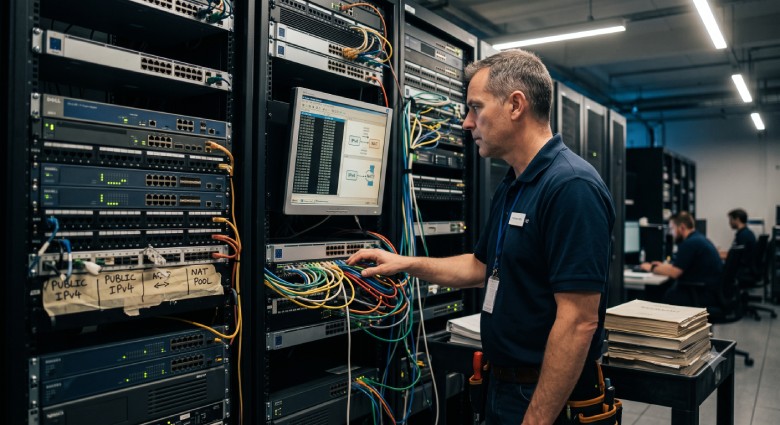
Understanding IPv4 Infrastructure in Modern Networks

Ranked: The 10 Best Digital PR Agencies for 2026

What You Need To Know If You Build A Website: Sites That Can Be HelpFull

How a Strong Personal Brand Can Showcase Your Professional Skills
Top 8 IoT Software Development Companies to Hire in 2026